
Frequently Asked Questions
Unable to register/Signup on Trademark E-filing ➕
Please go through the following steps:
Trademark Efiling > Signup
Note: Please refer Digital Signature manual for DSC installation steps.
Trademark Efiling > Signup
Note: Please refer Digital Signature manual for DSC installation steps.
Which Digital Signatures are supported? ➕
BSS (Browser Signing Solution) Download Link ➕
Signed pdf showing Question Mark in the place of digital signature ? ➕
Go through the following steps to Validate Doc :
Open pdf > right click sign > Menu > Validate Signature > Signature Validation Status > Signature Properties >
Popup Summary Tab > Show certificate button > Certificate Viewer > select e-Mudhra CA/Sub CA > Right side Trust tab > click button Add to Trusted Identities
Open pdf > right click sign > Menu > Validate Signature > Signature Validation Status > Signature Properties >
Popup Summary Tab > Show certificate button > Certificate Viewer > select e-Mudhra CA/Sub CA > Right side Trust tab > click button Add to Trusted Identities
One signature for multiple UserIDs? ➕
No, Digital Signatures are unique to users.
In which browser I sloud use Digital Signature ? ➕
New Digital Signature is working with any of the browser like Chrome/Mozilla/Edge etc.
How to update/replace digital signature ? ➕
TMR Efiling > Control Panel > Renew Digital Signature
Replace Encryption certificate ➕
TMR Efiling > Control Panel > Renew Digital Signature
While signing docuemnts getting message "dsc service not running" ? ➕
Please check wheather BSS is running. Please check is your DSC vendor application is running.
Digital Signature usage problem? ➕
Refer Digital Signature manual on TMR Efiling Login page.
PDF issue ? ➕
Please check for large size pdf
Please check for password protected pdf
Please check for invalid pdf
Error on screen ➕
Send error details to helpdesk.
DSC Click Button not working ? ➕
Reload page and try again.
ER-01 Latest version available➕
Download the new version of the application
ER-03 Internal error➕
Send error details by email to the Capricorn Support team.
ER-05 Invalid command name➕
The command is not supported in this version of the software.
ER - 06 Invalid Token [01]➕
Token Expired. Reload page and try again.
ER-07 Unable to Execute Commands➕
Please restart the application.
CR - 03 Certificate Not Found➕
Check BSS is working. Please check is your DSC token application is running.
CR-04 Certificate Verifier failed➕
Import Root chains and check the OCSP Status
CR - 06 Certificate Not Found➕
Check BSS is working. Please check is your DSC token application is running.
CR-08 The Certificate is revoked➕
Please check the Certificate status and use a valid dsc
OT - 02 Unable to read pdf file. PDF is either protected or corrupted.➕
Please recheck your attachemnts pdf and avoid using password protected pdf or corrupted pdf. And try again.
OT - 02 The user canceled the request➕
Please resend the request.
OT - 02 The input is not a valid Base-64 string➕
Pass the correct and valid base64 data
OT - 03 The private key is not found➕
Install the token driver / check the Certificate
OT - 03 Certificate Revoked➕
Please contact to your DSC vendor
OT-06 PIN is incorrect, or no Certificates found.➕
Enter the correct token PIN or token connection
OT-999 Object reference not set to an instance of an object➕
Install the token driver / check the Certificate (Exception case)
OT - 11 Base64 data and element mismatch➕
Please try to reduce attachment size. And try again
HTTP Error - 0 ➕
Please check if BSS(Browser Signing Solution) is running. Few other solutions are :
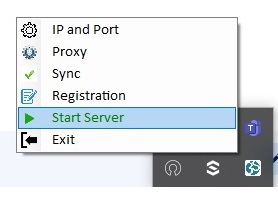 |
> Go to BSS icon on taskbar
> Right click on the BSS icon > Click on Start Server |
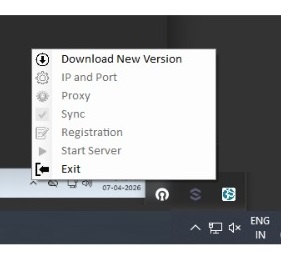
|
> Go to BSS icon on taskbar
> Right click on the BSS icon > Click download new version > Install new Version > Restart your PC/Laptop |
| Keep your DSC token connected | And try again |
PE-02 Missing or invalid data element value.➕
Pass Base64 data
PE-03 Invalid file type value➕
Pass pdf file only
PE-04 The page number is out of order range➕
Enter the page number according to the PDF.
PE-05 Invalid page number➕
Zero is not allowed
PE-07 Invalid box size➕
Passing the page number as blank is not allowed
PE-08 Invalid type of Certificate➕
Only Document Signing Certificate are allowed.
PE-99 pdf signing failed➕
Check pdf attachment.
Error: The system cannot find the file specified➕
Please go through the following steps:
ThisPC > Documents > PKISolution
Delete folder PKISolution
Go to taskbar > BSS icon > Right Click > Exit BSS
Goto Desktop > Restart/Run BSS
ThisPC > Documents > PKISolution
Verify that this folder contains five items(license/app-info/enc/infra/proxysettings)
Now you may try Efiling DSC activity
ThisPC > Documents > PKISolution
Delete folder PKISolution
Go to taskbar > BSS icon > Right Click > Exit BSS
Goto Desktop > Restart/Run BSS
ThisPC > Documents > PKISolution
Verify that this folder contains five items(license/app-info/enc/infra/proxysettings)
Now you may try Efiling DSC activity
Help desk contact details ➕
Email ID : tmr-helpdesk[at]gov[dot]in
Phone : 1800-110-989
Phone : 1800-110-989